

Make the image smaller before uploading to the CMS
Some people load huge images from their phone into the CMS and then resize it. Though it may look correct, the browser is still loading the huge file every time someone looks at your page. It is a giant waste of resources, like watering a houseplant with a fire truck.

Large images (file sizes) slow down Websites. Slow Websites equals bad user experience. Images downloaded directly from the phone are too large!
Speed – according to a research done by Google, if a web page takes more than 5 seconds to load, the probability that a user will leave that page increases by 90%. By resizing and reducing image sizes, you make your website pages faster.
Don't load images directly from the telephone or camera to the CMS, they are too big and take too long to download. An image taken directly from a cell phone can take 10 seconds or longer to load.
Image Calculator You can test the time it takes to download a picture by using a Download Calculator. According to FCC the average internet download speed is 20 Mbps.
In this example it takes over 6 seconds to download the image - that is too long.
How to resize images.
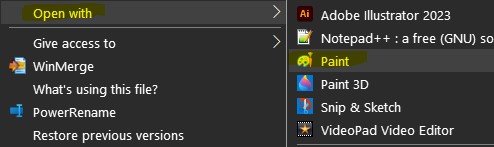
First download and open the image onto your PC; right click and open with Windows Paint.
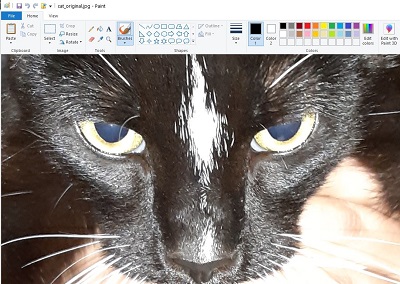
The cat is way too big!
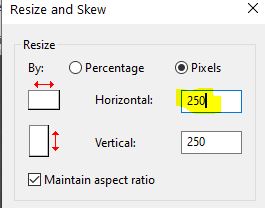
Click Resize, check the Pixels button. 2448 pixels is way to big for a web browser, it should be 500 at the most.

Change the Horizontal pixels to 250 and say ok.
Now the cat image is a reasonable size and will load much, much faster.
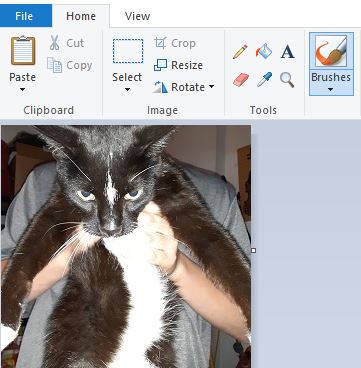
Compare the size of the origninal_cat.jpg and the new cat.jpg. The small cat is 35 times smaller in file size and will load 100 times faster.

Upload this smaller version to the CMS.